Replace your file server and SharePoint: documents you no longer have to hunt for
Replace your file server or SharePoint and manage files in a smarter way: spaces and tags instead of folder chaos, permissions, versions and an assistant, so you search for information instead of files.

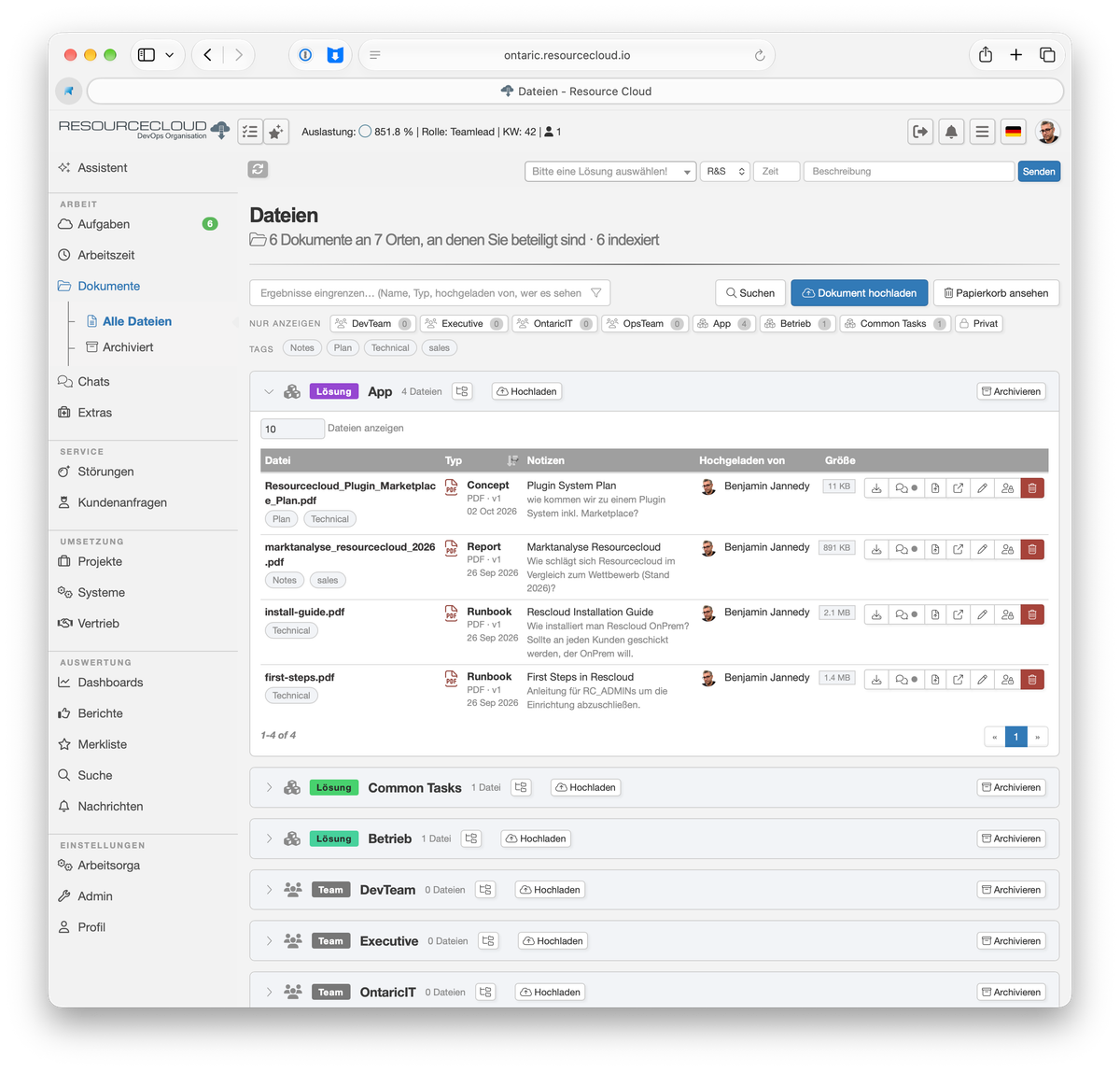
Every company knows it: the file server with folders inside folders inside folders. "final", "final_new", "final_new_2". Or SharePoint, where the document is somewhere, but nobody knows where. You search for files, open three versions and finally ask a colleague. With the Documents feature in Resourcecloud you can replace both and manage files in a smarter way.
You search for information, not for files
The biggest difference from a file server: you no longer need to know where a document lives or what it's called. You ask the assistant in plain words, for example: "How much may a hotel night cost on business trips?"
The answer comes in seconds, quotes the passage and links the document. You read the source right away instead of opening twenty PDFs. The technique behind it is called RAG (retrieval-augmented generation): the language model doesn't answer from memory, but from your own documents.
The regular search gets smarter too. It searches by words (full text) and by meaning: anyone searching for "vacation request" also finds the page that says "apply for leave". For every hit you see the source.
Spaces and tags instead of folders
Folders force every document into exactly one place. But where does the framework agreement belong that concerns a customer, a project and the legal department? In Resourcecloud you organise documents in spaces (for example per team, project or topic) and give them tags. The same document can then be found in several ways, without copies.
And if you're used to filing things as in folders: spaces and tags can feel like folders, but they are far more flexible. You get the familiar structure when you want it, without its limits.
Who may see it is decided per person, not by the search
A good search is dangerous if it gives things away. That's why search and assistant read the same documents and show only what the person asking may see. That applies to the assistant's answer as well. A document you aren't allowed to see shows up neither as a hit nor as a quote.
You assign permissions for teams, projects or individual people. There is a clear answer to "who may see this?".
Many small things that add up to more
- Versions and trash. Overwriting or deleting a file does no damage: older versions and deleted documents can be brought back.
- Documents live next to the work. Files belong to tasks, projects and teams instead of living in a separate archive. Whoever opens a task sees what goes with it.
- Indexing with an opt-out. Uploaded text is indexed for the assistant unless you switch that off per document. Confidential material stays out when you want it to.
- Your own storage. Files live in your own S3-compatible object storage. You keep control of your data.
- Your language model. You choose the language model and the embedding model for search yourself, in your own data centre or as a cloud service.
Each piece is useful on its own. Together they add up to more than the sum of the parts: permissions, search, assistant and tasks work together instead of running side by side like a file server, a search engine and a ticket system.
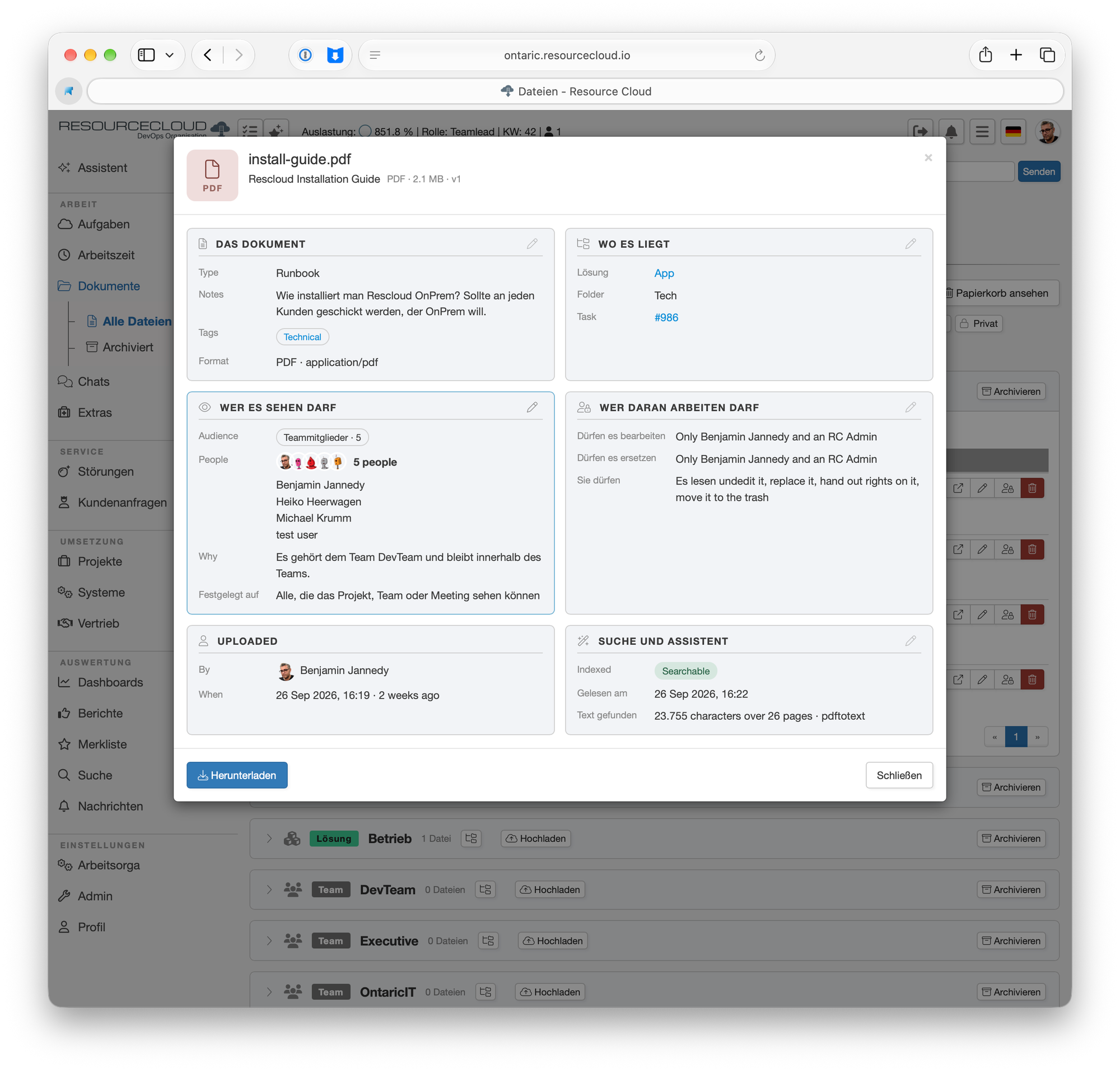
Replacing your file server or SharePoint
For most teams, a file server or SharePoint is a place to store documents they want to share and find again. That is exactly what the Documents feature takes over, with better retrieval and clear permissions. If you're planning a replacement, first check what you use every day, and try it with one team before you move everything.
Try it
In the demo, the sample data contains documents and the assistant: ask it a question and see how it quotes the source.